 Aspire Budgeting
Spending report
Learn how to use the Spending report to understand where your money went and inspect the transactions behind each category.
Updated August 10, 2026
The Spending report answers: Where did my money go during this period? It shows how total outflows are divided among category groups and categories.
Use it for a monthly review, to investigate an unexpectedly large category, or to compare your actual spending mix with your priorities.
What the report shows
The starting view includes:
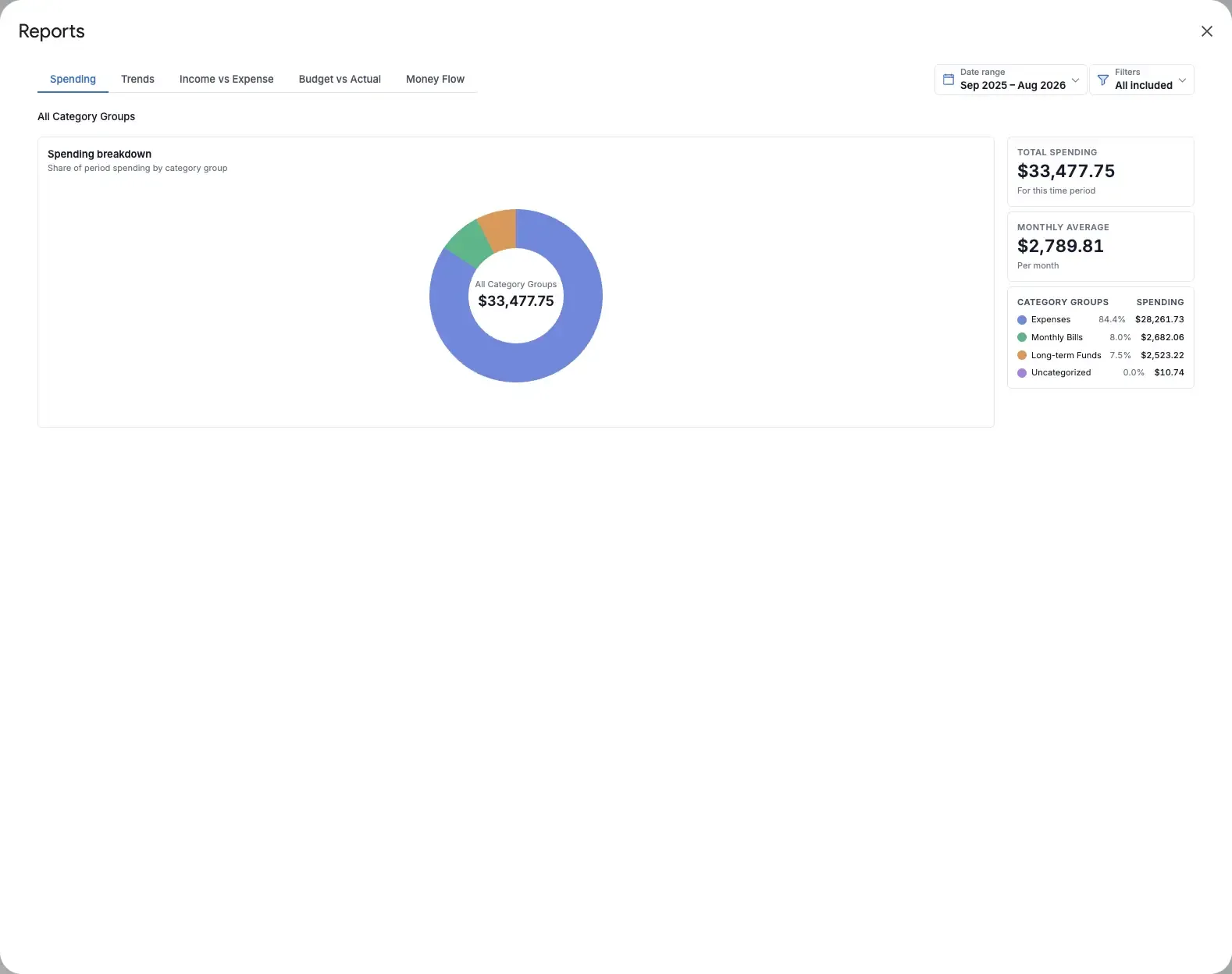
- A donut chart showing each category group’s share of period spending
- Total spending for the selected period
- Average spending per month
- A category-group list with each group’s amount and percentage
The report shows outflows. Income belongs in Income vs Expense.
Drill into a category
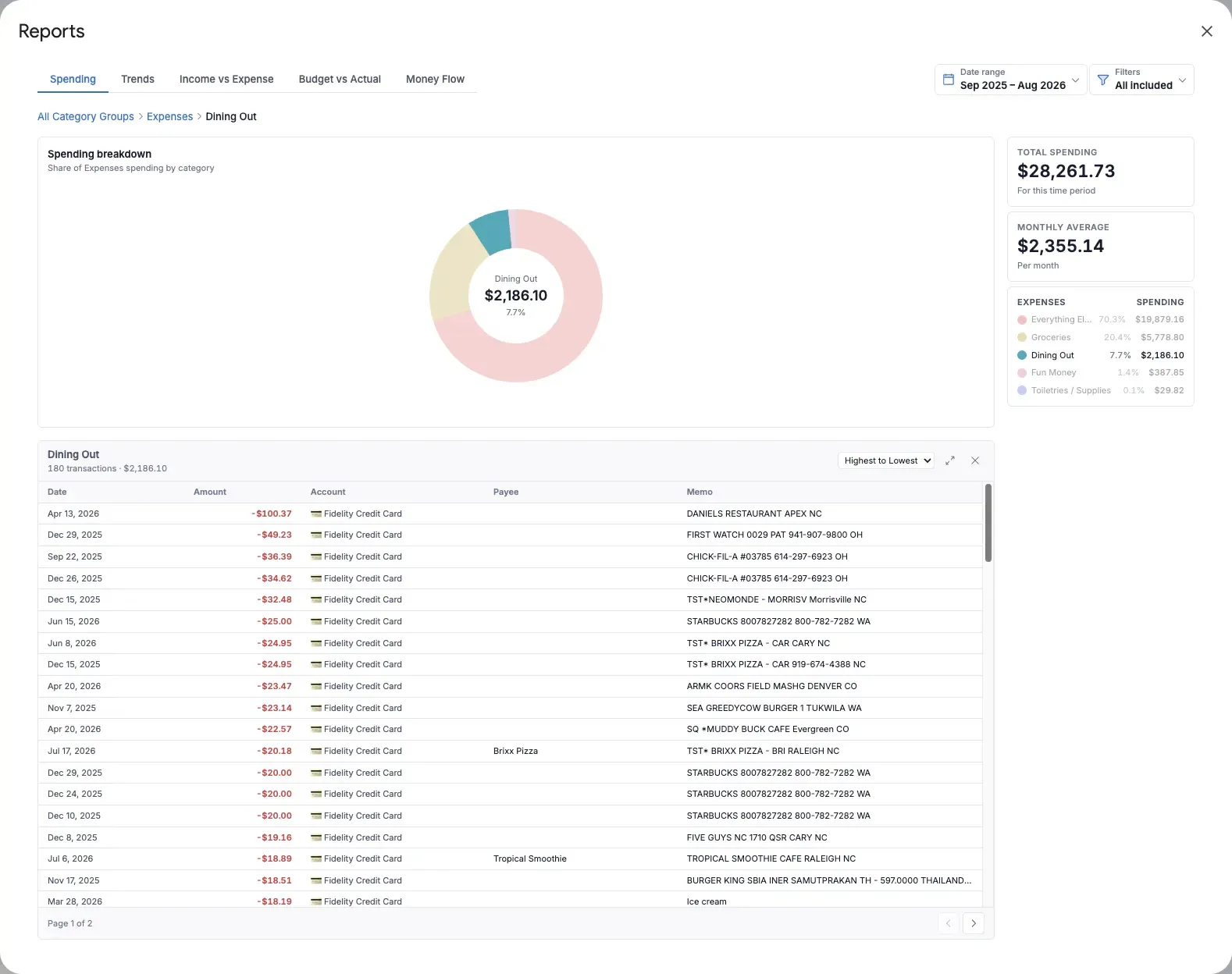
- Select a category-group slice in the chart or its row in the list.
- The chart changes to show the categories inside that group.
- Select a category to open its transaction details.
- Use the breadcrumb above the chart to return to the group or complete spending view.
The transaction table can be sorted by date, amount, or name. Use its expand button when you want more room, and close the table to return to the chart.
How to read the chart
A larger slice means that group or category made up more of the selected period’s spending. Hover over a slice for its exact amount and share of the current view.
The percentage is descriptive, not a budget score. A large Housing slice may be completely expected, while a smaller Dining Out slice may still be more than you intended to spend.
Useful ways to use Spending
- Monthly review: Set the range to This Month and inspect the largest groups.
- Merchant or account review: Use an Account or Payee filter to isolate a specific source of spending.
- Category cleanup: Investigate an unexpectedly large category and correct miscategorizations in the Transactions sheet after closing the report.
- Budget conversation: Use the category-group view to discuss broad priorities before focusing on individual purchases.
What Spending does not tell you
Spending explains composition, not change over time or performance against a target.
- Use Trends to compare monthly category spending.
- Use Budget vs Actual to compare current monthly targets with actual spending.
- Use Money Flow to see how income moved through accounts into spending groups.
Tips
- Category, Account, and Payee filters are shared by all five reports.
- Account transfers and balance adjustments are excluded from reportable spending.
- If nothing appears, broaden the date range or clear active filters.