Follow five steps to copy the spreadsheet, make a plan for the money you have, and see your first purchase reflected in your budget.
Work through these in order. Each step builds on the one before it.
Open your bank balances
Have the current balance for each account you want to budget.
Gather your monthly expenses
A rough list is enough. Estimates are fine for your first month.
You'll finish with your own private copy in Google Drive.
Click the button below to copy the Aspire Budget template to your Google Drive. This is your personal copy — only you can see or edit it.
Copy the free spreadsheetYou'll be asked to sign in to Google if you aren't already. The copy appears in your Drive immediately.
You'll finish with your real account balances ready to assign.
Open the Configuration tab in your new spreadsheet. You'll see a section for accounts. Add each account you want to budget.
Accounts to add:
Start simple. You can always add more accounts later. If you have five bank accounts, pick the 2–3 you actually spend from daily.
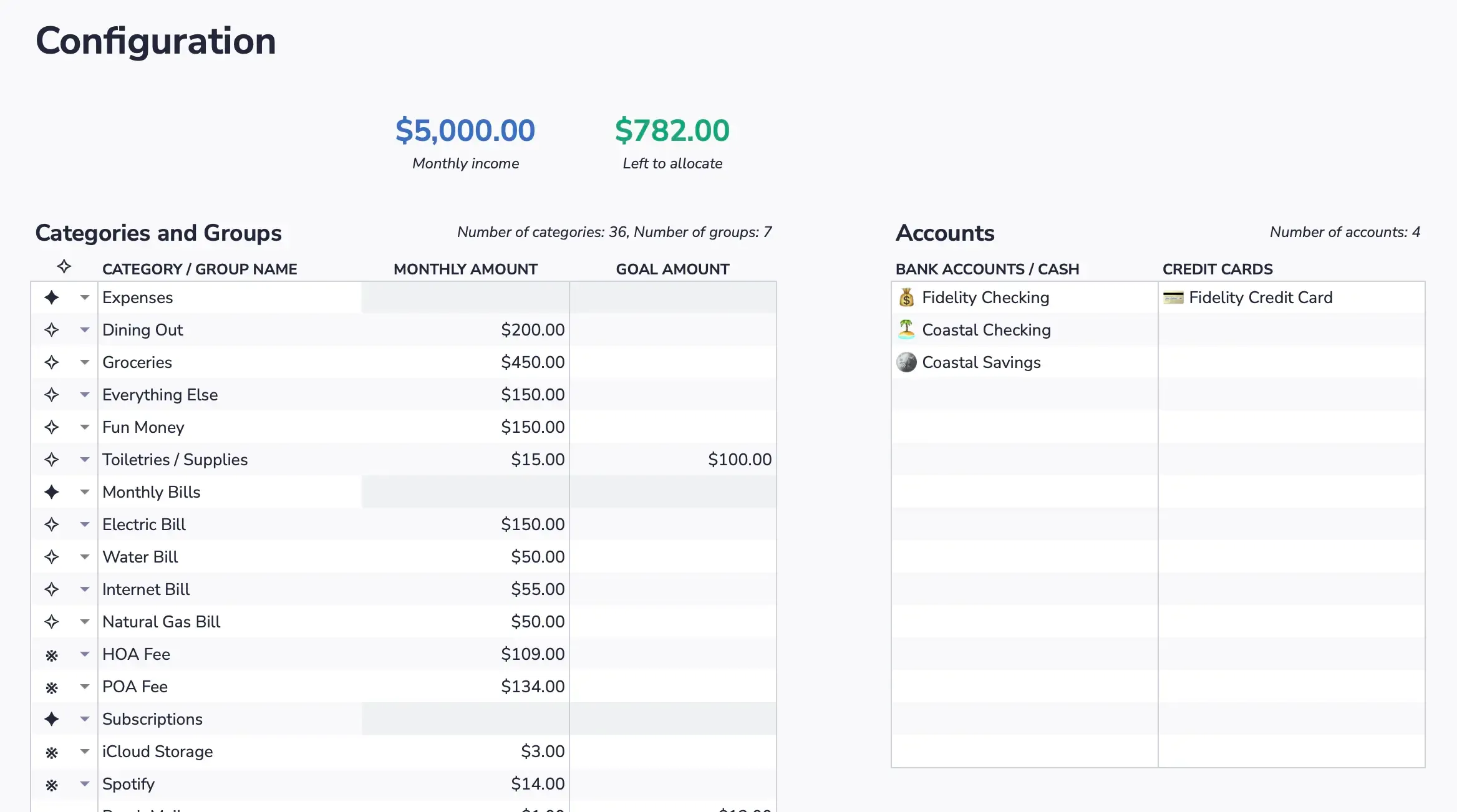
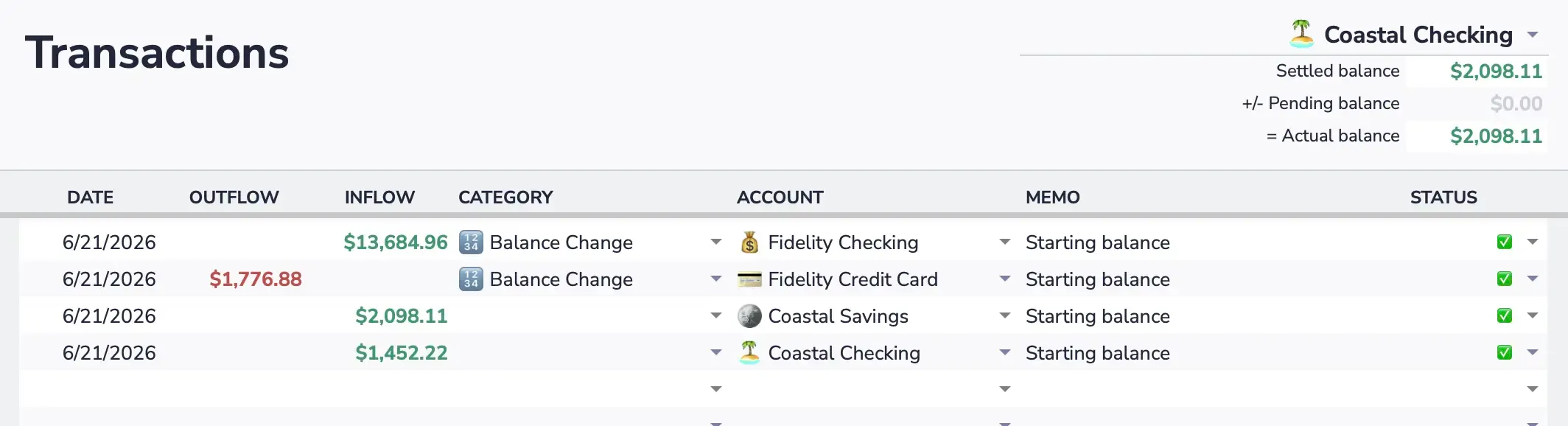
Now go to the Transactions tab. For each account you just added, enter a "Starting Balance" transaction. This tells Aspire how much money is in each account right now.
For each account, enter a row with:
If you're not in the habit of paying your credit card in full each month, don't add it as an account. Instead, create a budget category for the payment (for example, "Visa Payment") and fund it monthly like any other bill. This keeps Available to Budget focused on the money you actually have.
Once the debt is paid off and you're paying the card in full each month, add it as an account and budget normally.
Learn more about credit cards in Aspire →You'll finish with categories and monthly amounts that fit your life.
The spreadsheet comes with a set of default categories already filled in on theConfiguration tab. Categories are the "envelopes" your money goes into — each one represents something you spend on or save for.
Look through the defaults and make them yours. Delete categories that don't apply to your life, rename ones that are close but not quite right, and add any that are missing. You can change these at any time — nothing is permanent.
Tips for getting started:
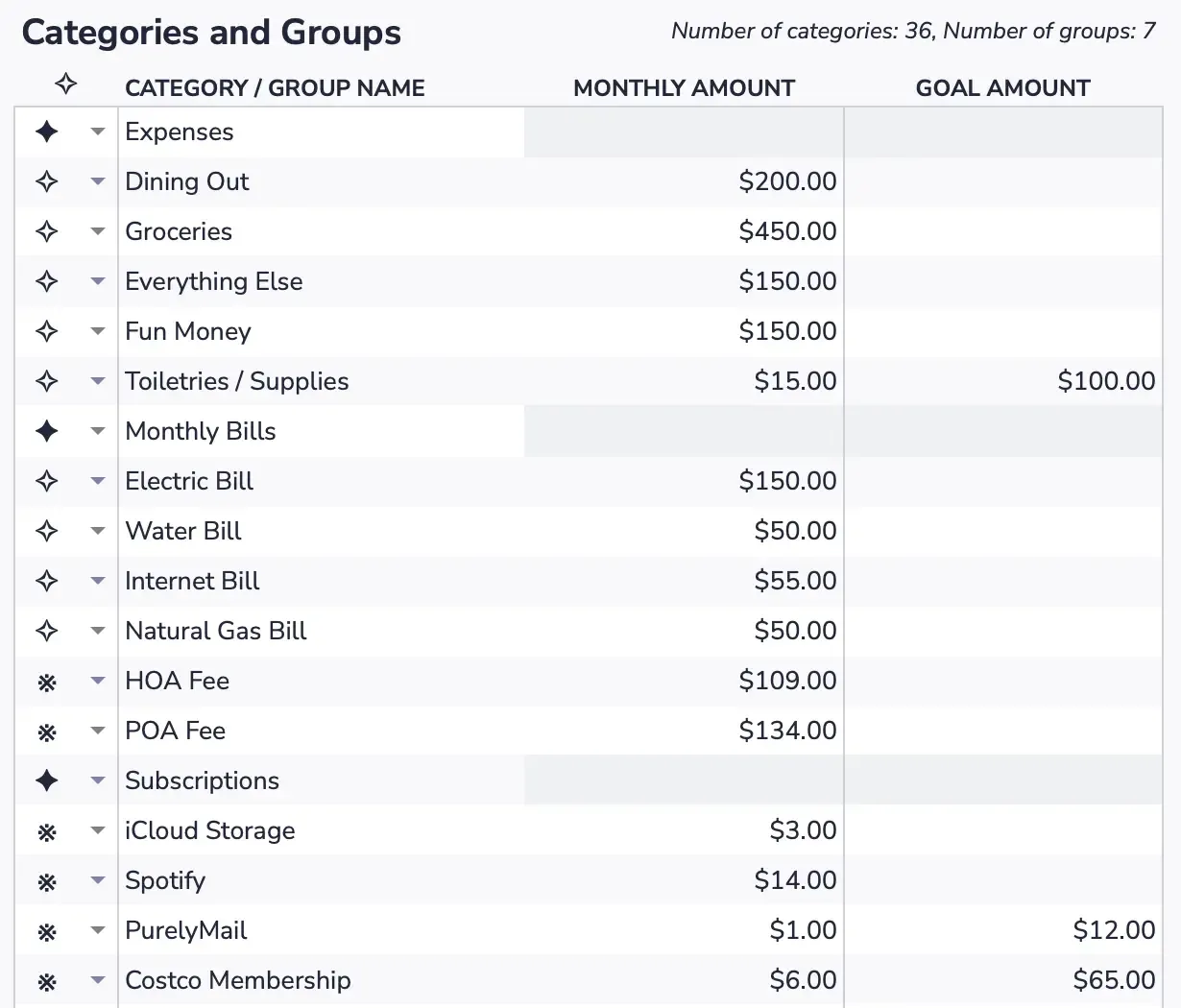
Each category has a Monthly Amount column — this is how much you plan to put into that envelope each month. The spreadsheet prefills some defaults, but take a minute to adjust them to your actual life.
Don't stress about getting these perfect. Use your best guess for now — you'll refine them after your first month of real spending data. The Category Transfers tab uses these values to tell you exactly how much each category still needs, so setting them now makes Step 4 much faster.
You'll finish with Available to Budget at $0 and every dollar assigned.
Check the Dashboard tab. You'll see your "Available to Budget" number — this is the sum of all your starting balances that hasn't been assigned to a category yet. Your goal is to get this to $0. This is a first pass, not a permanent commitment — you'll move things around as you learn.
This is the core of Aspire:
Assigning money isn't spending it. You're deciding in advance where each dollar will go. When Available to Budget hits $0, every dollar has a plan. That's the "win" moment.
Go to the Category Transfers tab. This is where you move money into your categories. For each category, add a row with the amount you want to set aside:
Don't worry about being perfect. You can move money between categories at any time using this same tab. The point is to make a first pass — a starting plan — not a permanent commitment.
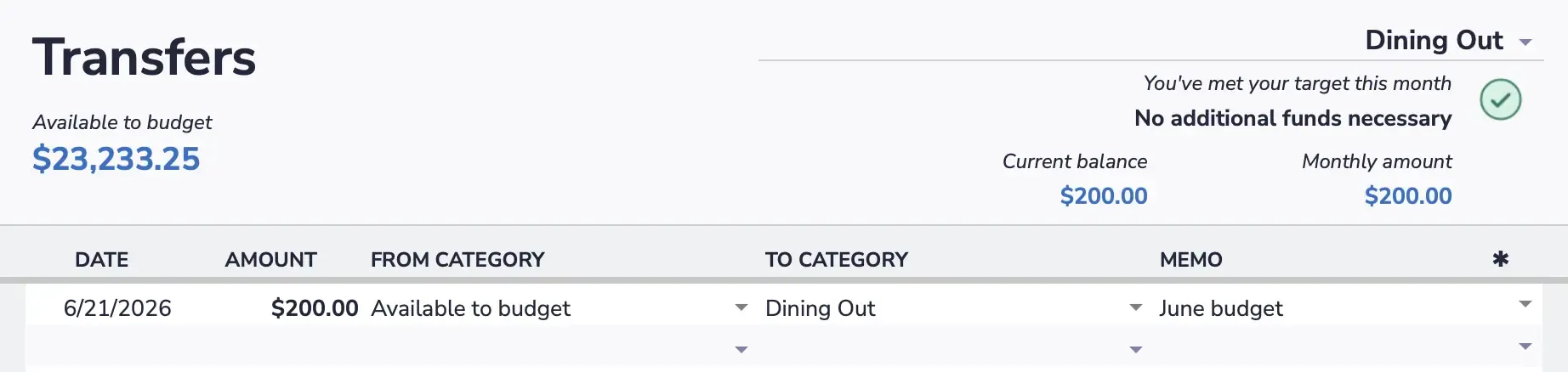
You'll finish with a working budget that responds to real spending.
Open your bank app. What was your last purchase? Enter it now.
Important: Only log transactions that happen after your starting balance. Your starting balance already accounts for everything before it. If you log an older purchase, you'll double-count it and your balances will be wrong.
Go to the Transactions tab and add a row with:
After entering the transaction, go back to your Dashboard. You'll see the category balance decreased by the amount you spent. The budget is tracking your spending in real time.
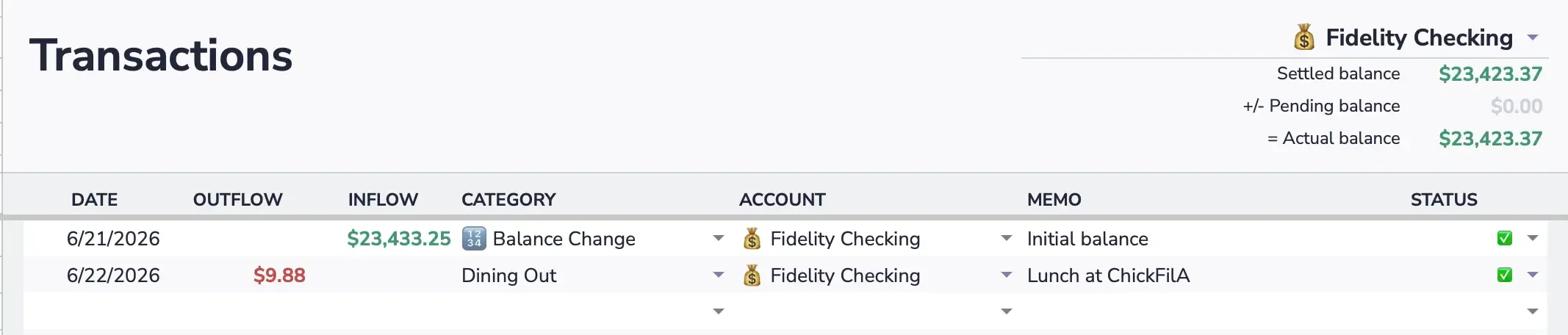
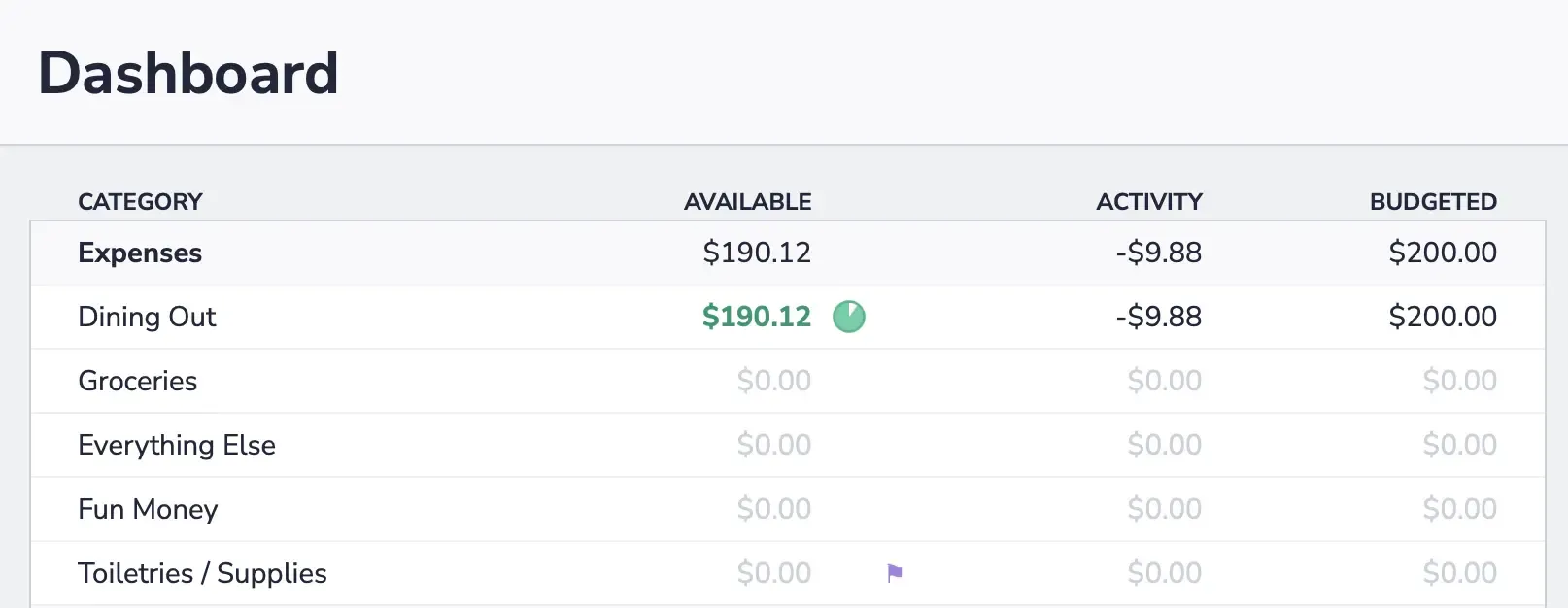
You've entered real balances, created categories, assigned every dollar, and logged a transaction. The budget is now tracking your money. That's it — you're budgeting.
Your only job this week:
Each time you spend money, add it to the Transactions tab. That's one row — takes about 15 seconds. Do this daily (or every couple days) and your budget stays accurate without any extra work.
After a week of logging transactions, you'll have a clear picture of where your money goes — and your category balances will tell you exactly what's left to spend.
Install the Aspire add-on
The free Aspire Budgeting add-on gives you a sidebar inside your spreadsheet with:
The add-on also offers Aspire Turbo — premium features like CSV import, auto-categorization, and budget forecasting designed to speed up your workflow and get more insights from your budget.
Get the free add-onSetup is the easy part. The Aspire Method is a four-step cycle — allocate, spend, record, adjust — that turns this spreadsheet into a lasting habit. Takes five minutes to read.
Read the Aspire Method → Aspire Budgeting