 Aspire Budgeting
Google Sheets Budgeting Guide: Methods, Categories & Workflow
Choose a budgeting method, build useful categories and sinking funds, track spending, review reports, and run a sustainable monthly Google Sheets budget.
By Matt Alcorn · Updated August 30, 2026
Jump to a section
- In this guide
- Choose a budgeting method
- Build a category system
- Plan for irregular expenses
- Choose a transaction workflow
- Use a monthly budgeting rhythm
- At the beginning of the month
- During the month
- At the end of the month
- Review reports and reconcile
- Make the budget work on mobile or with a partner
- Avoid common failure points
- The sheet is too complicated
- Irregular expenses are missing
- The budget is reviewed only after the month ends
- Transactions and account balances disagree
- The first plan is treated as permanent
- The template is being forced into the wrong method
- Choose your next step
Budgeting in Google Sheets works best as a repeatable monthly workflow: choose a method, organize categories, plan for irregular costs, record transactions, review the results, and adjust the next month. This guide explains those decisions and the routine that keeps a spreadsheet budget useful over time.
It does not repeat every neighboring resource:
| If you want to… | Start here |
|---|---|
| Build a simple spreadsheet with formulas | How to Make a Budget in Google Sheets |
| Choose a method and run the budget month after month | Continue with this guide |
| Copy a maintained spreadsheet instead of building | Free Google Sheets budget template |
| Compare Google, Aspire, Tiller, and DIY options | Google Sheets templates and tools comparison |
In this guide
- Choose a budgeting method
- Build a category system
- Plan for irregular expenses
- Choose a transaction workflow
- Use a monthly budgeting rhythm
- Review reports and reconcile
- Make the budget work on mobile or with a partner
- Avoid common failure points
Choose a budgeting method
Your method determines what the spreadsheet needs to show. Pick the simplest structure that answers the decisions you actually make.
| Method | Core rule | Spreadsheet structure | Best fit |
|---|---|---|---|
| Zero-based | Assign all available money to a purpose | Category assignments, spending, and amount left to assign | People who want detailed control over current money |
| Envelope-style | Spend from finite category balances | Running category balances and transfers between categories | People who want clear spending boundaries and rollovers |
| 50/30/20 | Group after-tax income into needs, wants, and savings/debt | Three top-level groups with totals or percentages | People who prefer broad guardrails |
Zero-based and envelope budgeting often use the same spreadsheet mechanics. The difference is emphasis: zero-based budgeting focuses on assigning all available money, while the envelope model emphasizes what remains in each category after spending.
The 50/30/20 method is easier to maintain because it needs fewer categories. It also provides less detail when one part of a group—such as dining inside Wants—needs attention.
If you want a wider comparison, see the best budgeting methods for beginners. If you already chose zero-based budgeting, use the dedicated Google Sheets build guide.
Build a category system
Categories should make decisions easier. Too few hide useful patterns; too many make every transaction harder to classify.
A practical starting structure is:
| Group | Purpose | Examples |
|---|---|---|
| Core bills | Recurring obligations | Rent or mortgage, utilities, insurance |
| Variable essentials | Necessary costs that change | Groceries, transportation, medical |
| Flexible spending | Costs you can adjust | Dining, entertainment, clothing |
| Future expenses | Money reserved before it is needed | Car repairs, travel, annual subscriptions |
| Financial goals | Savings or debt priorities | Emergency fund, debt payoff, retirement |
| Personal priorities | Values specific to your household | Giving, hobbies, individual spending |
Start with broad categories and split one only when its total stops answering a useful question. For example, split Food into Groceries and Dining Out when you need to know which behavior is changing.
Do not treat generic percentages as rules. Housing, transportation, childcare, debt, location, and income make household budgets too different for one universal allocation. Use your recent spending as the baseline, then adjust it toward your priorities. The CFPB similarly recommends reviewing several months so less-frequent expenses do not disappear from the plan. CFPB spending guidance
For examples organized by life area, use the complete budget category list.
Plan for irregular expenses
An expense does not become unexpected merely because it is not monthly. Insurance renewals, school supplies, gifts, medical costs, repairs, and annual subscriptions belong in the budget before the bill arrives.
Create a sinking-fund category for each material recurring cost:
- Estimate the amount you will need.
- Count the months until it is due.
- Divide the amount by the remaining months.
- Assign that amount each month.
- Let the category balance accumulate until you pay the bill.
For example, a $600 expense due in six months needs $100 per month. If the date or estimate changes, update the monthly amount rather than abandoning the category.
This requires category balances that roll forward. If your sheet resets every category to zero each month, add a carryover formula or track sinking funds in a separate table.
See sinking-fund categories and irregular-expense categories for planning prompts.
Choose a transaction workflow
The best spreadsheet is the one you can keep current. Decide how transactions will enter it before choosing templates or designing reports.
| Workflow | How it works | Main advantage | Main tradeoff |
|---|---|---|---|
| Enter as you spend | Add each purchase from your phone or computer | Category balances stay current | Requires a consistent habit |
| Daily or weekly batch | Copy recent activity from your bank | Fewer interruptions | Balances lag between sessions |
| CSV import | Download a bank file and map its columns | Faster for higher transaction volume | Requires categorization and duplicate review |
| Connected feed | A service pulls account activity into a sheet | Least manual data entry | Subscription, account connection, and provider limitations |
Whichever workflow you choose, every transaction needs a date, amount, category, and account. A memo or payee field helps when reviewing unfamiliar purchases later.
Use the expense-tracking guide for the transaction-table structure. For CSV import without a persistent bank connection, Aspire Turbo imports bank-downloaded files and runs Auto-Categorize as a separate review step. For connected-feed options, see the Google Sheets templates and tools comparison.
Use a monthly budgeting rhythm
A budget is not a one-time forecast. Consumer.gov describes a simple cycle: make a plan at the beginning of the month, record spending, compare the result at month-end, and use what you learned for the next plan. Consumer.gov budgeting guidance
At the beginning of the month
- Confirm the money available for the budget.
- Fund core bills and near-term obligations first.
- Add money to sinking funds and financial goals.
- Allocate flexible spending last.
- Confirm that the plan balances according to your chosen method.
During the month
- Record or import transactions on a predictable schedule.
- Check category balances before flexible purchases.
- Move money between categories when priorities change.
- Investigate missing, duplicated, or uncategorized transactions.
At the end of the month
- Reconcile spreadsheet account balances against actual accounts.
- Compare assigned amounts with actual spending.
- Identify one or two meaningful differences—not every tiny variance.
- Adjust next month’s categories or targets.
- Confirm that sinking-fund balances carried forward correctly.
The value comes from this feedback loop. A variance is information about the plan, the data, or the behavior; it is not proof that budgeting failed.
Review reports and reconcile
Reports should answer a decision. More charts do not automatically create more insight.
- Spending: Where did money go during the selected period?
- Trends: Which categories are changing across several months?
- Income versus expense: Did outflows leave room for savings or goals?
- Budget versus actual: Which category targets repeatedly miss reality?
- Money flow: Which accounts and groups received or used the money?
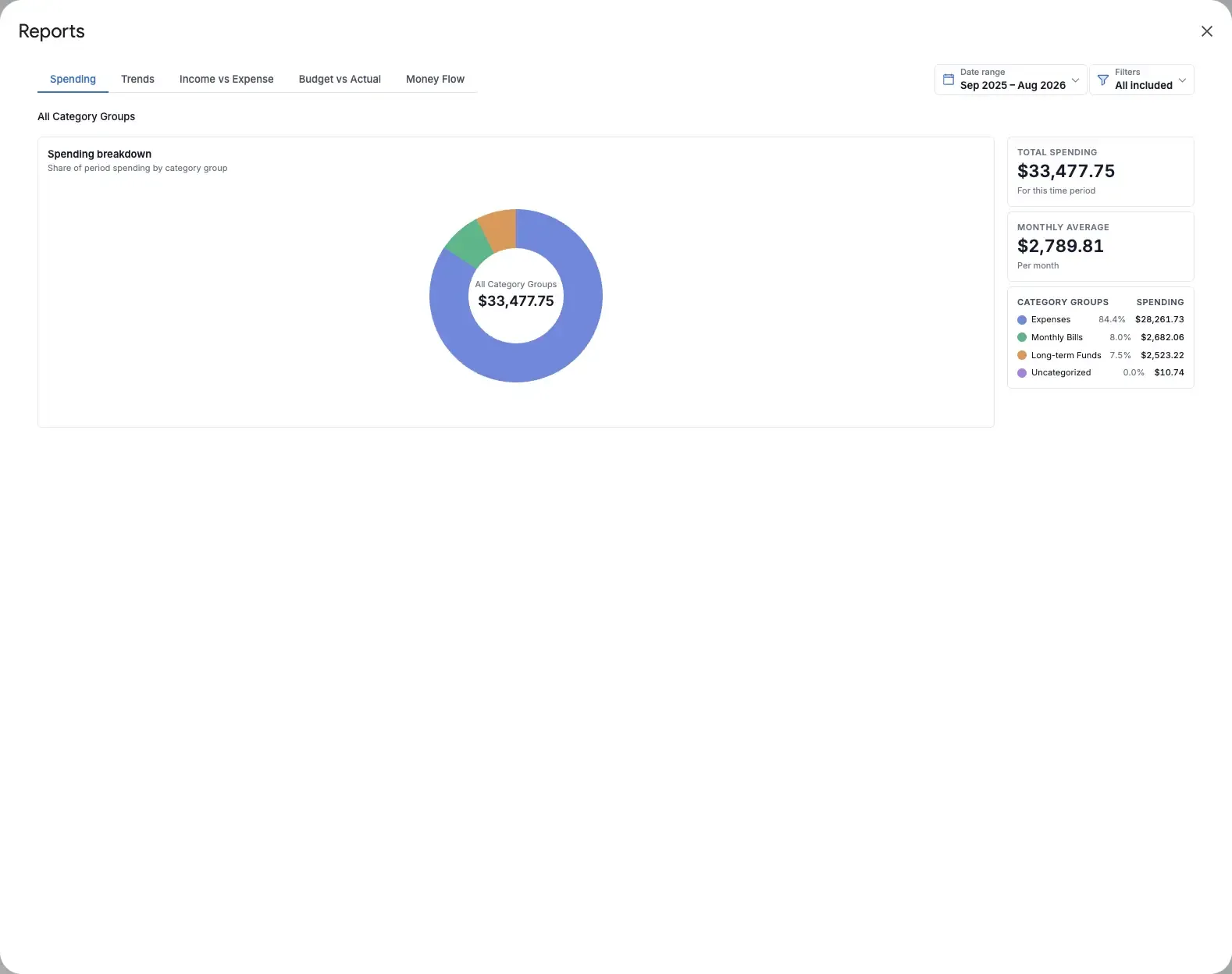
Review reports after reconciling. If spreadsheet balances do not match the source accounts, a polished chart is summarizing incomplete data.
Aspire’s free add-on includes five interactive reports—Spending, Trends, Income vs Expense, Budget vs Actual, and Money Flow. The reports overview explains their filters and drill-down controls.
Make the budget work on mobile or with a partner
The Google Sheets mobile app is useful for quick transaction entry and balance checks. Reserve formula editing, category restructuring, reconciliation, and detailed report review for a larger screen.
For a shared household budget:
- Keep one shared source of truth rather than separate copies.
- Give both partners edit access.
- Agree on the transaction-entry schedule.
- Use the same category names and account list.
- Review material category changes together.
- Give each person appropriate personal spending categories when that reduces friction.
Aspire Turbo also includes Aspire Mobile for checking balances and adding transactions through a phone-focused interface. For the collaboration workflow, see the budget spreadsheet for couples guide.
Avoid common failure points
The sheet is too complicated
Remove categories, charts, or automation that do not support an actual decision. Complexity creates maintenance work and more places for formulas to break.
Irregular expenses are missing
Review several months of account history and add sinking funds for costs that recur outside the current month.
The budget is reviewed only after the month ends
An after-the-fact report cannot influence a purchase already made. Check category balances during the month.
Transactions and account balances disagree
Reconcile regularly and correct missing, duplicated, or incorrect entries before trusting reports.
The first plan is treated as permanent
Early category amounts are estimates. Adjust them as actual spending reveals what the household needs and values.
The template is being forced into the wrong method
Choose a workbook whose category behavior, rollover rules, and transaction workflow match your method. Retrofitting a simple monthly tracker into an envelope system can require more work than changing templates.
Choose your next step
- Build a simple budget yourself: Follow the two-tab setup and formulas.
- Build a zero-based spreadsheet: Use the three-tab zero-based guide.
- Copy a maintained system: Review Aspire’s free Google Sheets budget template.
- Compare available tools: Compare Google, Aspire, Tiller, and DIY approaches.
- Choose starter categories: Browse the complete category guide.
- See realistic numbers: Review family, single-person, and freelancer budget examples.