 Aspire Budgeting
Split transaction
Learn how to split a single transaction across multiple budget categories using the Aspire Budget add-on.
Published June 17, 2026
Split Transaction lets you divide a single purchase across multiple budget categories. Bought groceries and household items in the same Target run? Split the transaction so each category reflects what you actually spent.
Requires Aspire Turbo. Split Transaction is a subscriber-only feature available in the Aspire Budget add-on sidebar.
When to use it
- A single receipt covers multiple budget categories (groceries + household, for example)
- You want accurate category-level tracking without manually editing rows
- You’d rather not guess which category “owns” a mixed purchase
How it works
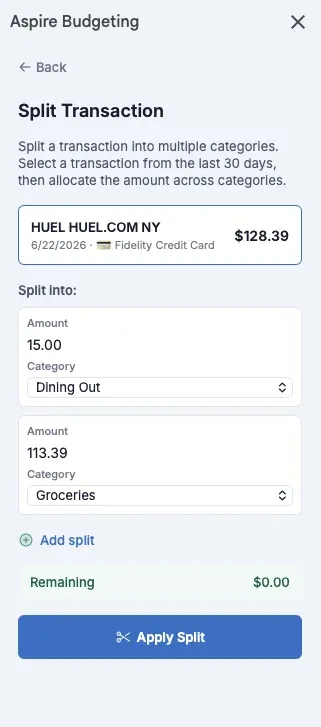
- Open the add-on sidebar and click Split Transaction in the Tools section.
- You’ll see a list of your transactions from the last 30 days. Use the filter to search by memo or date.
- Select the transaction you want to split.
- The split form appears showing the total amount. Add at least two splits — each with an amount and a category.
- The “Remaining” indicator updates as you go. All split amounts must add up to the original total exactly.
- Click Apply Split when the remaining reaches zero.
The add-on writes the split to your spreadsheet and automatically sorts the sheet to keep related rows together.
What happens in the spreadsheet
Splitting a transaction modifies your Transactions sheet. The original single row becomes a group:
Parent row — keeps the date, total amount, and account. The memo changes to “Split Transaction” and the category is left blank. This row is what your account-level formulas use.
Child rows — one per split. Each has the split amount, category, and the original memo. The account is left blank on children. These rows are what your category-level budgets use.
This design prevents double-counting. Account-level sums see the parent’s total. Category-level sums see the children’s individual amounts. Both are accurate.
Sorting and grouping
After a split, the add-on sorts your Transactions sheet to bring the parent and child rows together. They’ll appear as a group, ordered by date and then by their internal hash.
If you manually sort the sheet using the column headers, the group may separate. Use the add-on’s Sort Order tool (in Settings & Support) to re-sort and bring them back together.
Filtering
Not all transactions can be split. The selector excludes:
- Transactions with no amount (empty outflow and inflow)
- Account transfers (↕️ Account Transfer category)
- Balance changes (🔢 Balance Change category)
- Transactions that have already been split (parents and children)
Tips
- You can split into more than two categories. Click “+ Add split” to add additional rows. There’s no hard limit.
- Amounts must be exact. The split amounts must sum to the original transaction amount — the button stays disabled until they do.
- Use it after import. A common workflow is: import via CSV, auto-categorize what you can, then split any mixed-category transactions.
- Inflows work too. If you receive a deposit that covers multiple categories (a reimbursement that’s part income, part refund), you can split it the same way.
Visual identification
Split transactions look different in the spreadsheet:
- The parent row has “Split Transaction” in the memo column and an empty category
- Child rows have your original memo and their assigned categories
- You can add conditional formatting rules to highlight these rows (for example, a gray background on rows where memo equals “Split Transaction”)
Your spreadsheet administrator can set up conditional formatting to make split groups more visually distinct. The add-on does not modify conditional formatting automatically.
Limitations
- No un-split (yet). Once a transaction is split, you can’t reverse it from the sidebar. To undo a split manually, restore the original values to the parent row and delete the child row contents.
- No editing splits. To change the category allocation after splitting, edit the child rows directly in the spreadsheet.
- 30-day window. Only transactions from the last 30 days appear in the selector. Older transactions can still be split by manually editing the sheet.