 Aspire Budgeting
Income vs Expense report
Learn how to compare monthly income and expenses, understand net income and savings rate, and inspect the underlying transactions.
Updated August 10, 2026
The Income vs Expense report answers: Did I bring in more money than I spent? It compares inflows and outflows month by month and calculates the difference.
Use it for cash-flow reviews, irregular-income planning, or checking whether changes in income are actually creating more financial margin.
What the report shows
The summary metrics show:
- Income: External inflows during the selected period
- Expenses: External outflows during the selected period
- Net income: Income minus expenses
- Savings rate: Net income divided by income
The monthly chart compares income and expenses with a net-income line. Below it, a table provides the detailed monthly breakdown.
Positive net income means more entered than left during the period. Negative net income means expenses were greater than income. This is cash flow, not an account-balance or net-worth calculation.
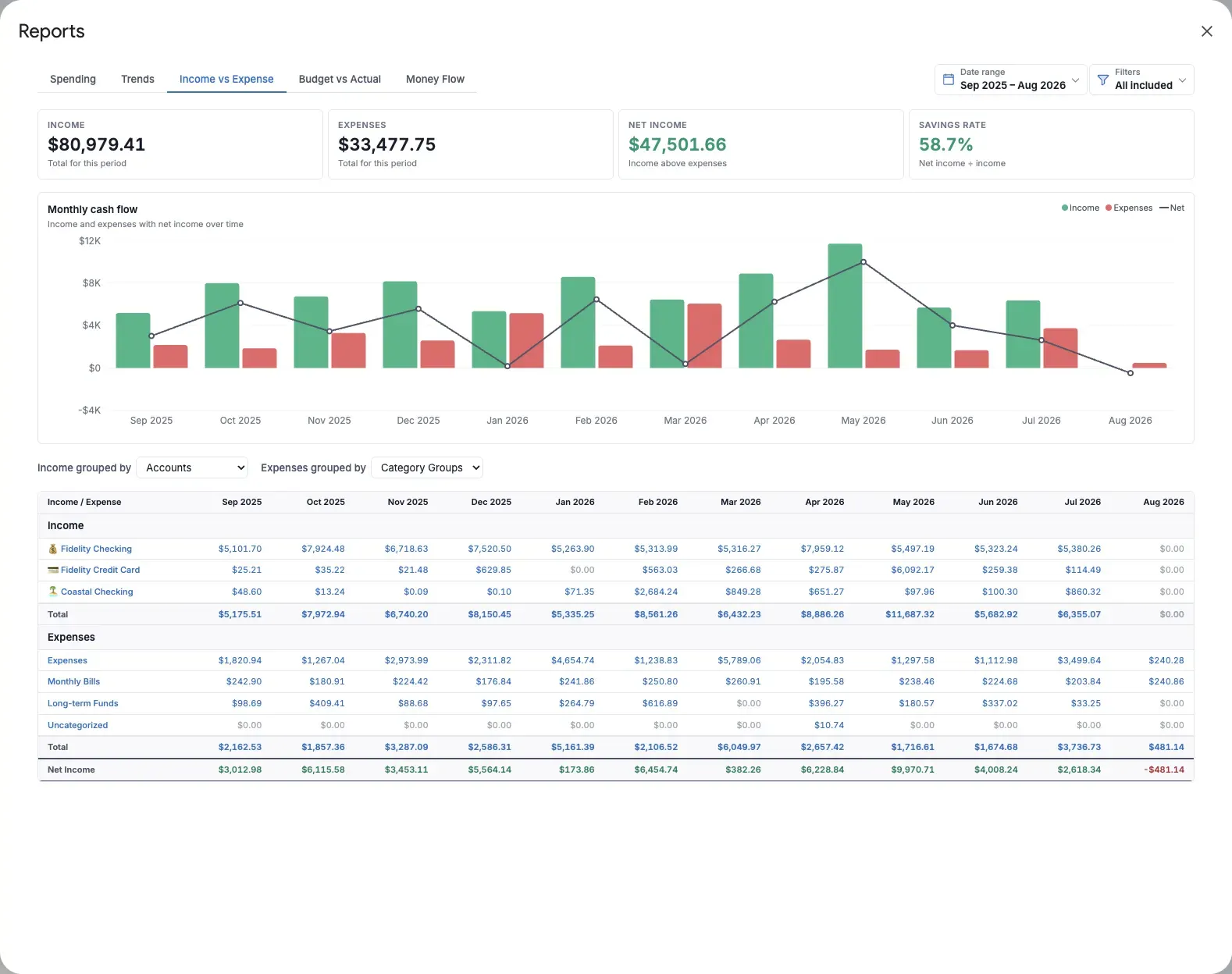
Choose how the table is grouped
Income and expenses have separate grouping controls. Each can be organized by:
- Accounts
- Category groups
- Categories
For example, you can group income by Account while grouping expenses by Category Group. This makes it possible to compare where money arrived with the broad purposes it funded.
Open transaction details
- Select an income or expense bar to see all transactions for that direction and month.
- Select a row name to see its transactions across the complete date range.
- Select a monthly table amount to see the transactions for that row and month.
Net income is calculated from income and expenses, so the net line and net table values do not open a separate transaction list.
Useful ways to use Income vs Expense
- Monthly cash-flow check: Look for repeated months where expenses exceed income.
- Irregular income planning: Compare high- and low-income months before deciding how large a buffer you need.
- Savings-rate review: Use a longer period so one unusual month does not dominate the result.
- Account review: Group by Account to understand which accounts receive income or handle most spending.
What is excluded
Account transfers and balance adjustments are excluded. Moving money between your own accounts is not new income or new spending and should not inflate either side of the comparison.
Tips
- Use at least three complete months when you want to understand typical cash flow.
- Payee filters affect rows when the workbook includes a Payee field.
- Use Spending when you need a more visual breakdown of the expense side.