 Aspire Budgeting
The Aspire Add-on, Redesigned: One Window for Your Budget, Tools Beside Your Sheet
The Aspire add-on for Google Sheets has a new layout. A large Aspire window holds importing, reconciling, reports, and settings, with an At a glance summary of your budget on Home. Budget Tools stay beside your sheet in the sidebar.
By Matt Alcorn · Published November 24, 2026
Jump to a section
When I introduced the Aspire add-on in July, everything lived in the sidebar. That worked when the add-on did a handful of things. Since then it has picked up CSV Import, Reconcile Accounts, Recurring Expenses, five reports, and Aspire Mobile, and a narrow panel on the side of your spreadsheet started to feel like a hallway closet. Things fit, but you had to dig.
So I rebuilt the layout around one question: do you need to watch your spreadsheet while you work?
- If not, the work happens in the new Aspire window: a large window over your spreadsheet for importing, reconciling, reports, and settings.
- If you do, it happens in Budget Tools, the sidebar beside your sheet, for the tools that change your budget while you watch: Quick Budget, Auto-Categorize, and Split Transaction.
The Aspire Window
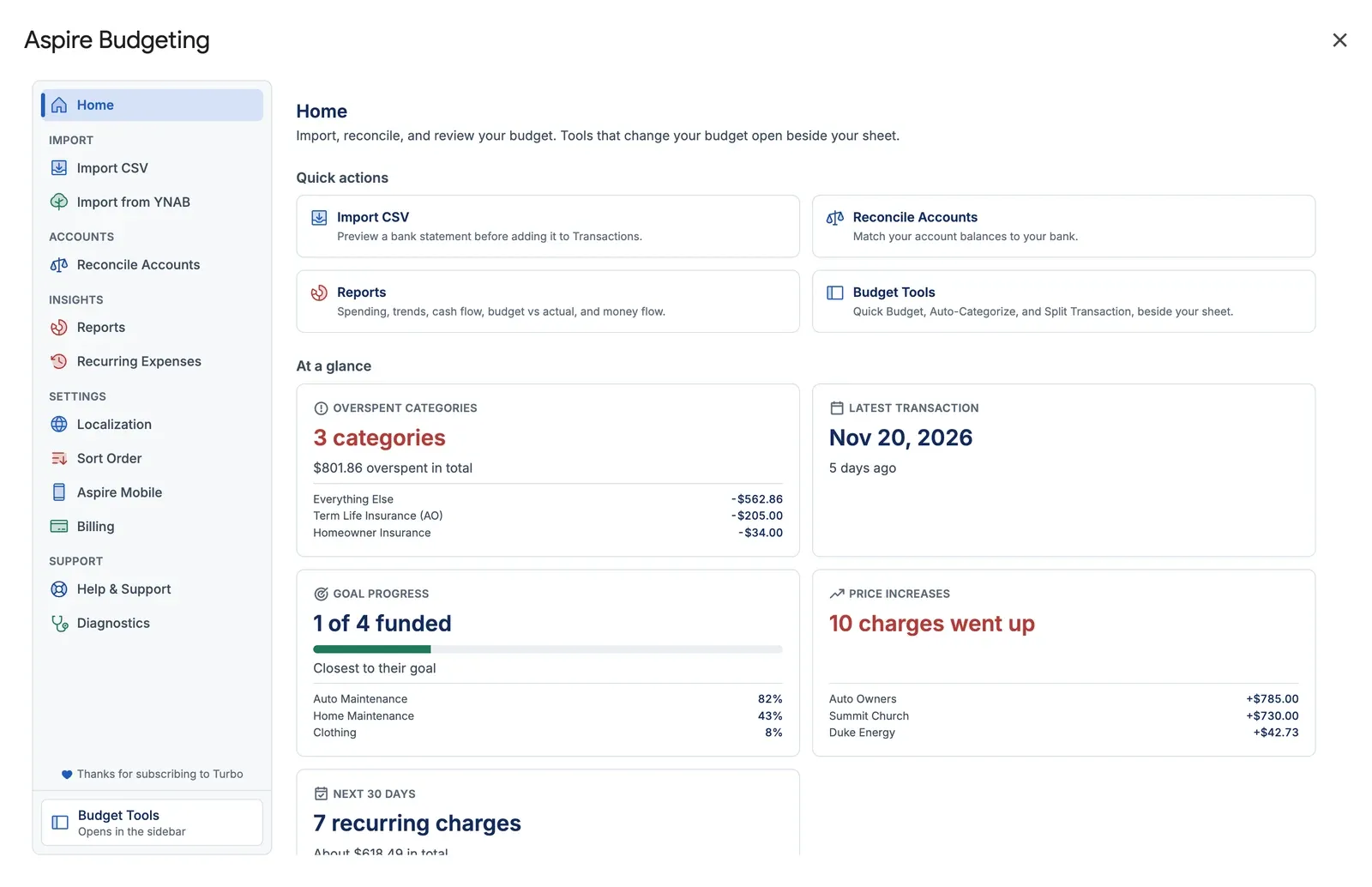
Open Extensions → Aspire Budgeting → Open Aspire and the add-on opens as large as your screen allows. Everything is in the menu on the left, grouped by what you’re trying to do: Import, Accounts, Insights, Settings, and Support. Every section is one click away, and none of them hide more menus inside.
The extra room matters most where there’s a lot to look at. Import previews show more columns, reports get space to breathe, and tables don’t need sideways scrolling to fit in a sidebar.
The window also remembers the size it settled at, so it opens at the right size the next time instead of jumping around while it loads.
Home: Your Budget at a Glance
Home opens first. At the top are quick actions for the things you do most: Import CSV, Reconcile Accounts, Reports, and Budget Tools.
Below that is At a glance, a short summary of your budget:
- Overspent categories: how many are in the red, by how much in total, and the biggest ones.
- Latest transaction: the date of your most recent transaction. If it says “12 days ago,” it’s probably time to import.
- Goal progress: how many of your goals are funded, and the categories closest to theirs.
Turbo subscribers see two more, both from Recurring Expenses:
- Price increases: recurring charges that went up, and by how much.
- Next 30 days: the recurring charges coming up and roughly what they’ll total.
These are read-only on purpose. Home tells you where things stand and leaves the decisions to you. They also load after the window opens, so a large spreadsheet never makes you wait to get to work.
Budget Tools: Beside Your Sheet
Some tools are better when you can see your spreadsheet change. When you fund categories with Quick Budget, fill in blank payees and categories with Auto-Categorize, or divide a purchase with Split Transaction, you want to watch the numbers move as you go.
Those three live in Budget Tools, in the sidebar. Open it from Extensions → Aspire Budgeting → Open Budget Tools, or from the Budget Tools button at the bottom of the Aspire window’s menu. Open Aspire at the bottom of the sidebar takes you back.
Keep it open while you budget, and your most-used tools are always a click away.
Importing, With a Real Preview
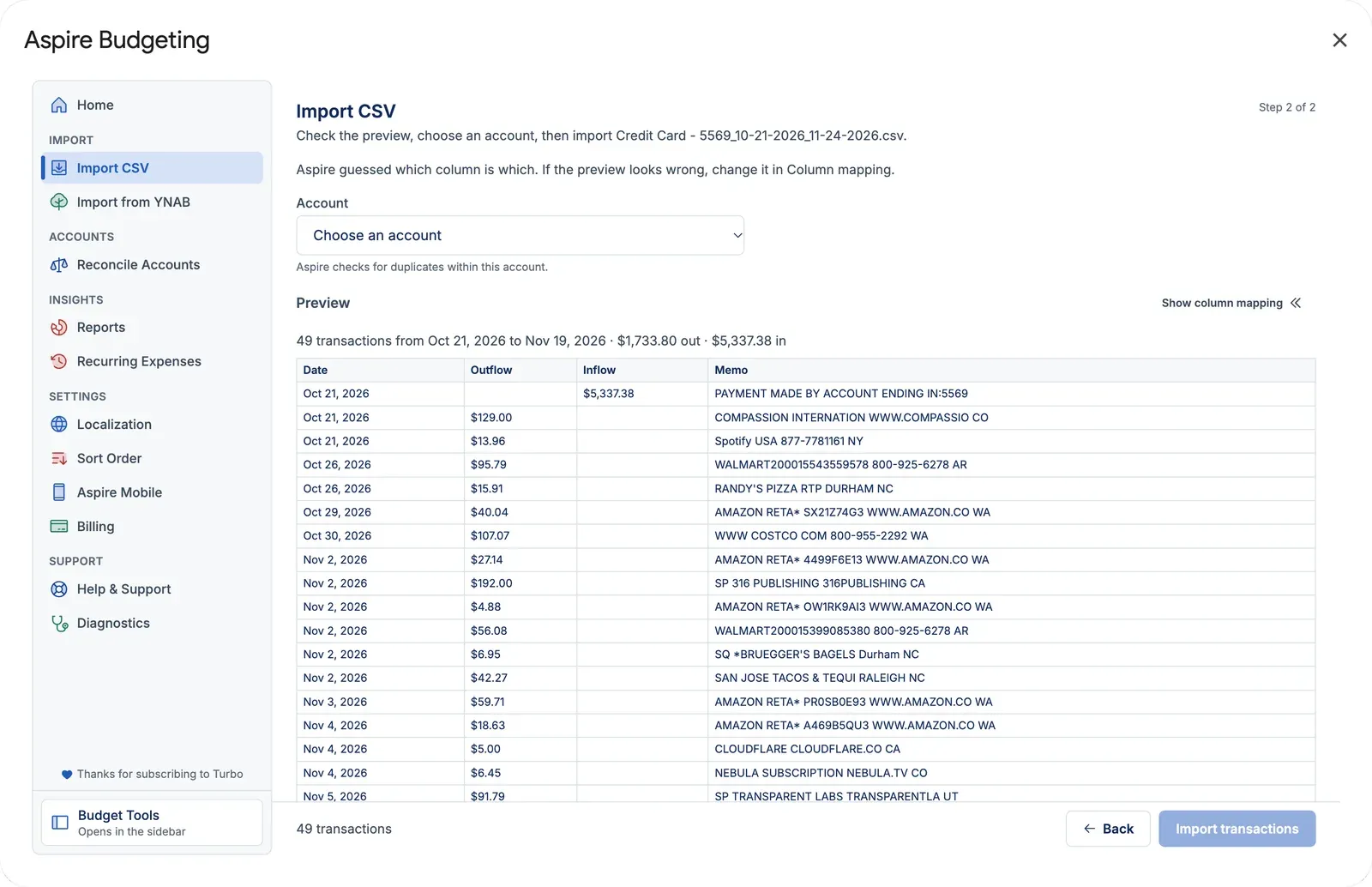
CSV Import got the biggest upgrade from the extra space. Before anything touches your spreadsheet, the preview tells you about the whole file:
- What’s in it: how many transactions, the date range, and the total in and out.
- What it can’t read: rows without a readable date or amount are listed, not silently skipped.
- What’s new: Aspire checks the file against the account you choose and lists the transactions already in your sheet separately, so a statement you’ve already imported doesn’t come in twice.
The preview shows every transaction it will import, not just the first few. Aspire also reads more bank files as they come: summary lines at the top, disclaimers at the bottom, files with no column names, and separate Debit and Credit columns. You choose the account each time, since it decides which transactions count as duplicates.
When the import finishes, you see what was added. Click Categorize these and Budget Tools opens on Auto-Categorize, ready to fill in the new rows.
Import from YNAB uses the same layout, so moving your history over from YNAB looks and works the same way.
Reconcile Every Account in One Place
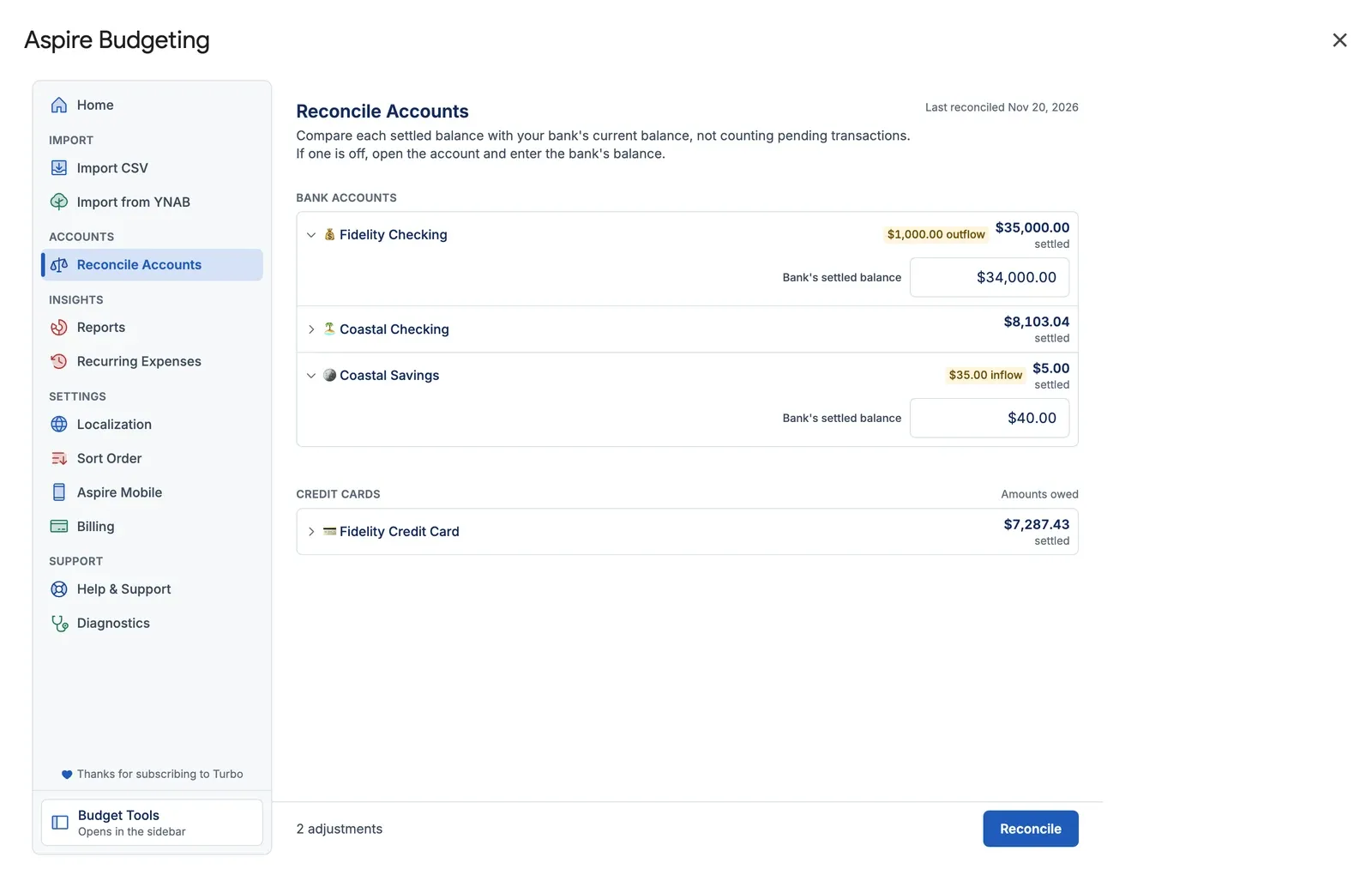
Reconcile Accounts lists every account with its settled balance. Compare it with your bank, type a new balance only for the accounts that are off, and Aspire writes the adjustments and records your reconciliation date. I wrote more about it in Introducing Reconcile Accounts.
Reports With Room to Breathe
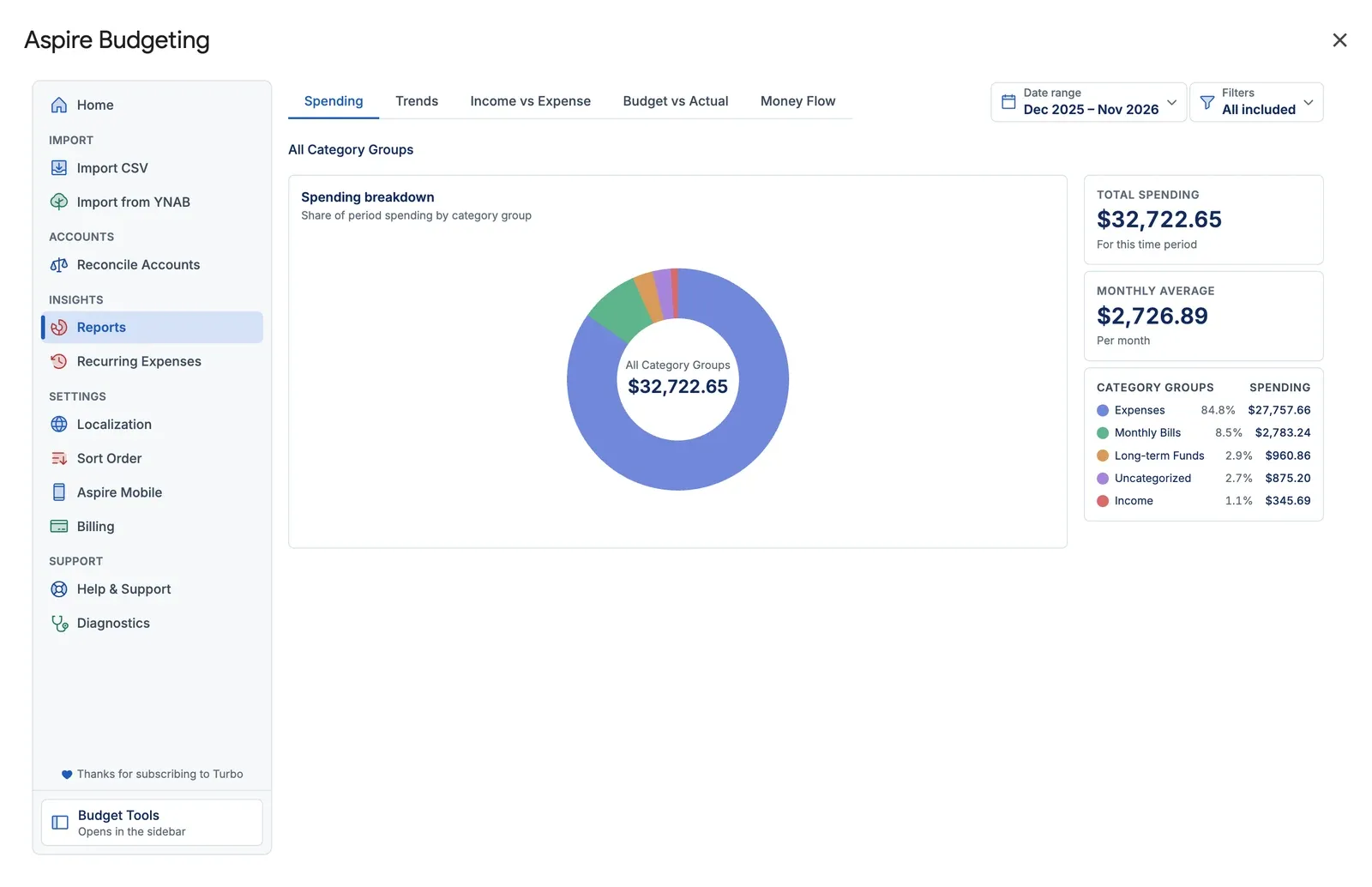
All five reports are in the Insights group: Spending, Trends, Income vs Expense, Budget vs Actual, and Money Flow. They share the same date, Category, Account, and Payee filters, and you can open the transactions behind any value in a chart. Reports read directly from your spreadsheet, so your data doesn’t go to an outside server. See Using reports for a tour.
Recurring Expenses
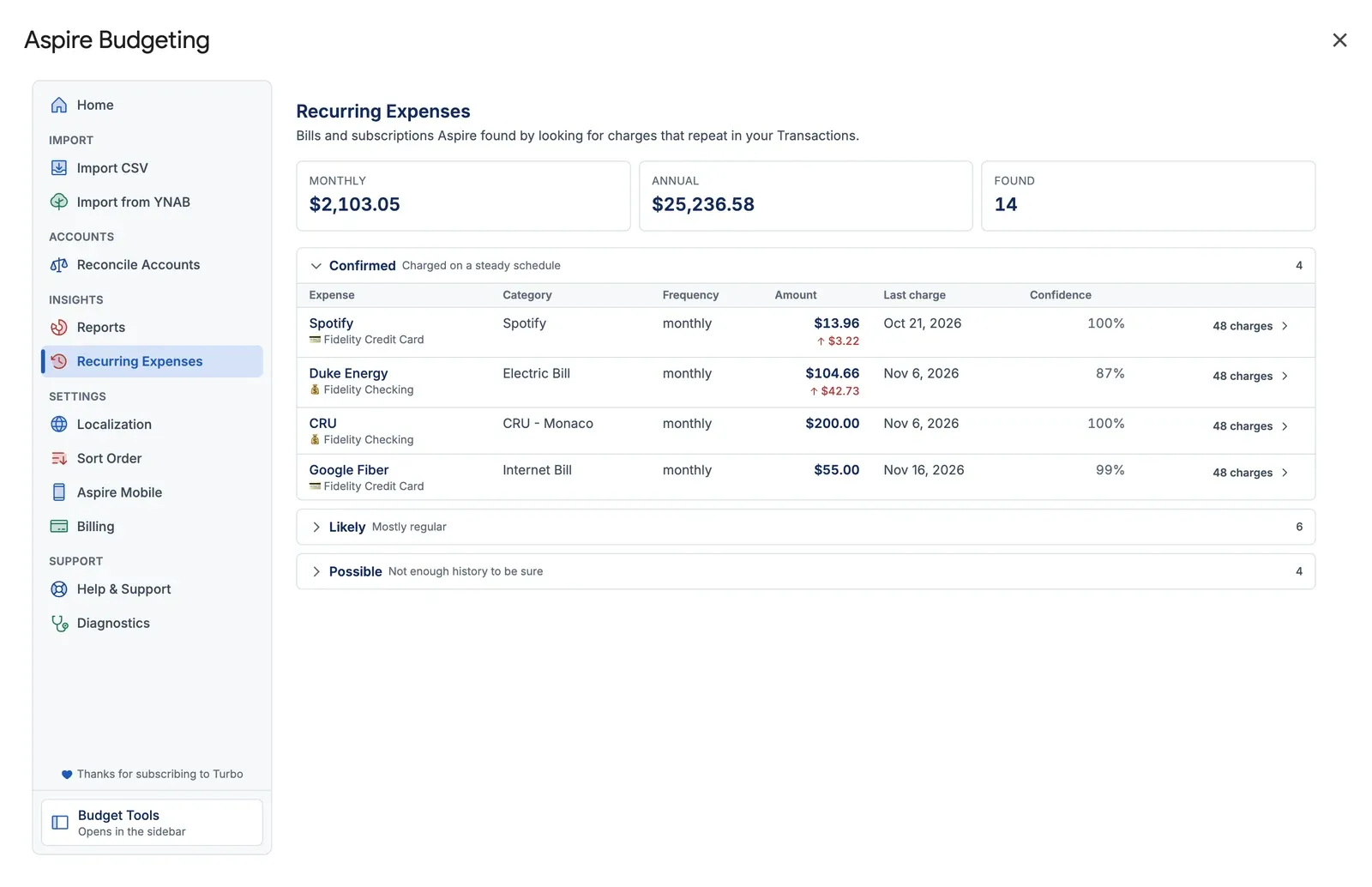
Recurring Expenses finds bills and subscriptions by looking for charges that repeat in your Transactions. At the top you see what they add up to each month and each year. Below, they’re grouped by how sure Aspire is: Confirmed, Likely, and Possible. When a charge goes up, the increase is flagged right next to the amount.
Settings and Support
The Settings group holds Localization, Sort Order, Aspire Mobile, and Billing. Under Support you’ll find Help & Support and Diagnostics, which is now its own section instead of being tucked inside Help.
The Extensions Menu
Everything still starts from Extensions → Aspire Budgeting:
- Open Aspire: the Aspire window, on Home
- Open Budget Tools: the Budget Tools sidebar
- Import CSV, Reconcile Accounts, and Reports: the Aspire window, opened straight to that section
- Sort Transactions: sort newest first or oldest first
- Install Template
What’s Free and What’s Turbo
The Aspire spreadsheet is free, and so is most of the add-on: Home and its At a glance summary, all five reports, Import from YNAB, Localization, Sort Order, and Diagnostics.
Aspire Turbo adds the tools that save the most time: CSV Import, Reconcile Accounts, Recurring Expenses, Budget Tools (Quick Budget, Auto-Categorize, and Split Transaction), Aspire Mobile, the recurring charge cards on Home, and direct support. It’s $5/month and starts with a 30-day free trial.
If you don’t subscribe, Turbo features show a lock in the menu. Select one, or Aspire Turbo near the top of the menu, to see everything Turbo includes.
Try It
If you already have the add-on, open Extensions → Aspire Budgeting → Open Aspire. If you don’t, Using the Aspire add-on walks through installing it and covers each part of the new layout.
As always, I’d love to hear what you think, especially about what you’d like to see on Home next.