 Aspire Budgeting
CSV import
Learn how to import bank transactions into your Aspire Budget using CSV files.
Updated August 13, 2026
CSV Import lets you bring bank transactions into your Aspire Budget spreadsheet in bulk — no more typing each one by hand.
Requires Aspire Turbo. CSV Import is a subscriber-only feature available in the Aspire Budget add-on sidebar.
How it works
CSV Import is a 3-step process inside the Aspire Budget add-on:
- Upload your CSV file — Download a transaction export from your bank’s website, then drag it into the add-on or click to select the file.
- Map your columns — Tell the add-on which columns in your CSV correspond to Date, Amount, and Description. The add-on auto-detects common bank formats, and you can save mappings for one-click reuse next time.
- Preview and import — Review the first 5 rows to confirm everything looks right, select which account to assign the transactions to, then import.
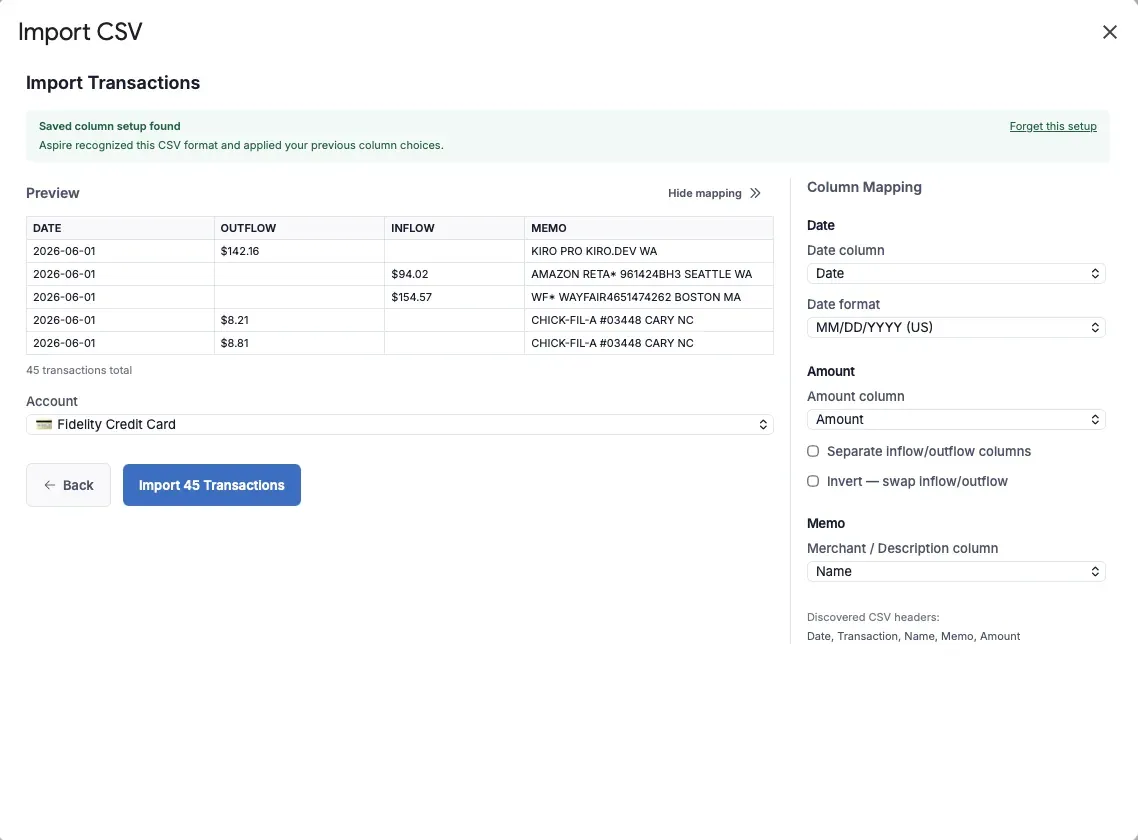
Column mapping
Every bank exports CSVs slightly differently. The mapping step lets you specify:
- Date column — which column contains the transaction date
- Date format — Auto-detect, Month / Day / Year, Day / Month / Year, or Year / Month / Day
- Amount column — a single column with signed amounts (negative for outflows, positive for inflows), or separate outflow/inflow columns
- Description column — the merchant or memo field
- Invert toggle — if your bank uses the opposite sign convention (positive for spending), flip it here
Once you save a mapping with a name (e.g., “Chase Checking”), the add-on remembers it. Next time you import a CSV with the same column headers, your saved mapping is automatically recommended.
Duplicate detection
The add-on creates a unique fingerprint (hash) for each imported row based on the raw CSV data — the date, amount, and description exactly as they appear in your file. This hash is stored in a hidden column of your Transactions sheet.
When you import the same CSV again (or an overlapping date range), transactions that have already been imported are automatically skipped. You’ll see a message like “Imported 12 transactions (3 duplicates skipped).”
Important: first-time imports
If you already have manually-entered transactions in your sheet before you start using CSV Import, those existing rows won’t have a hash — because they weren’t imported via CSV. This means the first time you import a CSV that overlaps with manually-entered transactions, duplicates are possible.
After the first import, all future imports will deduplicate correctly. We recommend reviewing your Transactions sheet after your first CSV import and removing any duplicates you spot.
Supported date formats
CSV Import auto-detects most common bank date formats:
01/15/2026— US format (MM/DD/YYYY)15/01/2026— European format (DD/MM/YYYY)2026-01-15or2026/01/15— year-first format20260115— compact year-first formatJan 15, 2026,15 January 2026, or15-Jan-26— English named-month formats15.01.2026— dot-separated day/month/year format
If the date is ambiguous, such as 05/07/2026, Aspire uses your browser locale as a tie-breaker. You can also override Auto-detect by choosing Month / Day / Year, Day / Month / Year, or Year / Month / Day in Column Mapping.
Dates with month names in languages other than English are not currently supported. If your bank exports dates like 05-juil.-26 or 05-Mär-26, convert the date column to an all-number format before importing, such as 2026-07-05 or 05/07/2026.
Dates are stored in your spreadsheet as real date values, and amounts are stored as numbers. The formatted strings shown in the preview are display-only. After import, values display using the sheet currency and date formats configured on the Configuration tab; see Localization.
Tips
- Download your bank CSV for a specific date range to keep imports manageable
- Name your saved mappings clearly (e.g., “Fidelity Cash Mgmt” or “Amex Gold”) so you can find them quickly
- After importing, run Auto-Categorize separately to infer blank Payees and Categories, then review its confidence-marked cells in the Transactions sheet