 Aspire Budgeting
Import from YNAB
How to import your YNAB Register CSV into Aspire Budgeting for free.
Published June 26, 2026
Jump to a section
- Before you import
- How to import your YNAB Register
- What imports
- What does not import
- After the import
- Import history or start fresh?
- Troubleshooting
- Categories or accounts do not match
- Split transactions look like separate rows
- Budget amounts did not import
- I imported the same file twice
- Credit card balances need cleanup
- Related reading
Import from YNAB lets you bring your YNAB transaction history into Aspire Budgeting for free.
YNAB import does not require Aspire Turbo. Regular bank CSV imports are a Turbo feature, but importing a YNAB Register CSV is free for everyone.
Use the Register CSV. YNAB exports more than one file. Aspire imports the Register file, which contains your transaction history.
Before you import
Set up your Aspire spreadsheet first:
- Copy the Aspire Budgeting spreadsheet to your Google Drive.
- Install or open the free Aspire Budgeting add-on.
- Add account names that match your YNAB account names.
- Add category names that match your YNAB categories.
Exact names make cleanup easier. If a category or account does not match, the transaction can still import, but you may need to review it afterward.
How to import your YNAB Register
- Export your budget from YNAB.
- Find the Register CSV file from the export.
- Open your Aspire spreadsheet.
- Open Extensions -> Aspire Budgeting -> Open Sidebar.
- Go to Settings & Support -> Import from YNAB.
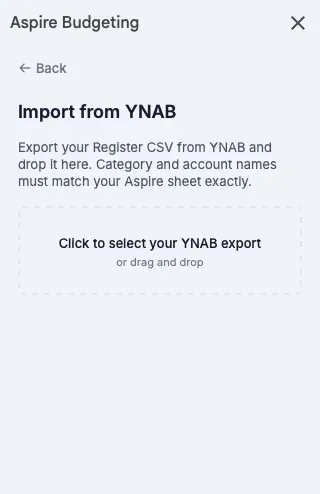
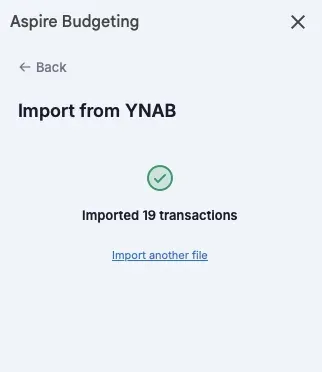
- Drop in the Register CSV and review the import summary.
What imports
- Transaction dates
- Inflow and outflow amounts
- Account names
- Category names
- Payee or memo descriptions
- Split transactions as individual rows
What does not import
- Budget allocations
- Category targets or goals
- Flags
- Cleared or reconciled status
YNAB keeps budget allocations in a separate export. After importing transactions, set your monthly amounts and goals in Aspire’s Configuration tab.
After the import
Review these before you budget forward:
- Check account names and category names.
- Reconcile current account balances.
- Add or adjust Monthly Amounts in Configuration.
- Assign current money to categories.
- Use Category Transfers when plans change.
Import history or start fresh?
Import your YNAB history if you want old transactions for reports, context, or continuity.
Start fresh if your old YNAB budget is messy, your categories have changed, or you mainly want the same budgeting method in a clean Google Sheet.
Either path works. Aspire uses zero-based envelope budgeting whether you import history or begin from current balances.
Troubleshooting
Categories or accounts do not match
Review the names in Aspire’s Configuration tab. Matching YNAB names before import keeps reports cleaner.
Split transactions look like separate rows
That is expected. YNAB exports split transactions as individual rows, and Aspire imports each split line so category totals stay accurate.
Budget amounts did not import
Aspire imports the Register CSV. Set monthly amounts and goals manually in Configuration after import.
I imported the same file twice
Aspire checks for duplicates during import. Review the import summary to see what imported and what was skipped.
Credit card balances need cleanup
After import, reconcile account balances and set your current starting point before budgeting forward. For the full workflow, see How to handle credit cards.