 Aspire Budgeting
Quick budget
Learn how Quick Budget funds all your budget categories in one click based on your targets and goals.
Published June 16, 2026
Quick Budget calculates how much each category needs to reach its target and lets you fund them all at once — no more manually creating individual category transfers.
Requires Aspire Turbo. Quick Budget is a subscriber-only feature available in the Aspire Budget add-on sidebar.
How it works
When you open Quick Budget from the add-on sidebar, here’s what happens:
- The add-on reads your category configuration (monthly amounts and goal amounts) from the Configuration sheet.
- It calculates the all-time balance for each category by summing inflows and outflows from the Transactions sheet, plus transfers in and out from the Category Transfers sheet.
- It determines how much each category needs to be fully funded.
- You review the amounts, skip or adjust any categories, then click “Fund Budget.”
- The add-on writes the transfers to your Category Transfers sheet — one row per funded category.
Funding logic
Quick Budget handles two types of categories differently:
Regular categories (no goal)
For categories that have a monthly target amount but no savings goal, Quick Budget calculates:
Amount needed = Monthly target - Current balance
If the category is already at or above its target (balance >= monthly amount), it’s skipped automatically.
Goal categories
For categories with a savings goal, Quick Budget transfers the monthly allocation amount — the amount you’ve set aside to contribute each month toward the goal. It does this regardless of the current balance, unless the goal is already fully funded (balance >= goal amount).
The preview screen
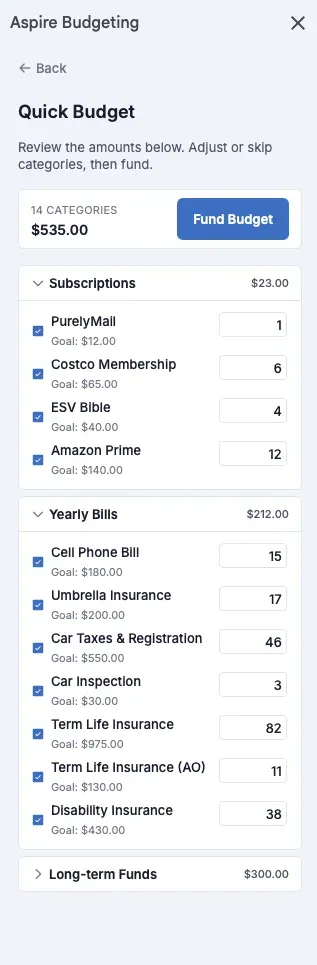
Before anything is written to your spreadsheet, you see a preview showing:
- Category groups — collapsible sections matching your Configuration layout
- Amount per category — the calculated transfer amount, editable if you want to adjust
- Checkbox — click the category name or checkbox to skip it (won’t be funded)
- Total — the sum of all active (non-skipped) categories at the top
Adjust amounts or skip categories as needed, then click “Fund Budget” to execute.
What gets written
Each funded category produces one row in your Category Transfers sheet:
| Date | Amount | From | To | Memo |
|---|---|---|---|---|
| Today’s date | Calculated amount | Available to budget | Category name | Quick Budget |
The “From” category is always “Available to budget” — make sure you have sufficient funds there before running Quick Budget.
Tips
- Run after income arrives — Quick Budget works best right after you receive income and have funds in “Available to budget” to distribute.
- Use with CSV Import — Import your transactions first, then run Quick Budget to allocate funds. This gives the most accurate balance calculations.
- Adjust as needed — The preview lets you override any amount. If you want to fund a category partially this month, just edit the number before clicking Fund.
- Skip categories temporarily — Click any category to uncheck it. Useful when you want to hold off funding a specific category until later in the month.
- Goal categories get their monthly amount — Even if a goal category has a large remaining balance to fill, Quick Budget only transfers the monthly contribution. This keeps your funding predictable and sustainable.