 Aspire Budgeting
How to Make a Budget in Google Sheets (Step-by-Step + Free Template)
Build a working Google Sheets budget with a Budget tab, transaction log, categories, and formulas — or copy a free template and start in about 10 minutes.
By Matt Alcorn · Updated August 29, 2026
Jump to a section
- Why Google Sheets for budgeting?
- Choose your starting point
- Approach 1: Build from scratch
- Approach 2: Start from a template
- Setting up your budget (step by step)
- Step 1: List your income
- Step 2: List your expenses
- Step 3: Assign amounts
- Step 4: Track spending
- Step 5: Review weekly
- Tips for making it stick
- When to graduate from basic to advanced
- Getting started today
- Frequently asked questions
- Related reading
To make a budget in Google Sheets, create two tabs: Budget and Transactions. On the Budget tab, list each category with its planned amount, actual spending, and remaining balance. On the Transactions tab, record each purchase with its date, description, amount, category, and account. A SUMIF formula connects the two so category totals update as you enter spending.
This guide shows the exact beginner setup and formulas. It focuses on building and maintaining a simple working spreadsheet. For a comparison of budgeting methods, categories, and reports, use the complete Google Sheets budgeting guide. If you already know you want to assign every dollar, follow the zero-based budgeting guide.
Skip the formulas and copy the free Aspire template →Why Google Sheets for budgeting?
- Free forever — no subscription that might increase or get discontinued
- Works everywhere — laptop, phone, tablet via the Google Sheets app
- Shareable — budget with a partner without both needing paid accounts
- You own it — data lives in your Drive, not on a company’s servers
- No required bank connection — you decide what to enter or import
- Flexible — add formulas, charts, or automations whenever you want
The main tradeoff vs. dedicated apps: no automatic bank transaction importing. You enter spending manually (or import via CSV). Most people who stick with spreadsheet budgeting find this actually helps — the act of logging a purchase keeps spending top of mind.
Choose your starting point
Approach 1: Build from scratch
You can create a budget in a blank Google Sheet. Here’s the minimum structure you need:
Sheet 1 — Budget overview:
- Column A: Category names (Rent, Groceries, Transportation, etc.)
- Column B: Budgeted amount (what you plan to spend)
- Column C: Actual amount (what you actually spent)
- Column D: Difference (=B2-C2, shows over/under)
Sheet 2 — Transactions:
- Date, Description, Amount, Category, Account
- One row per purchase
Formulas you’ll need:
=SUM(range)— total a column=SUMIF(Transactions!$D:$D, $A2, Transactions!$C:$C)— add transactions whose category matches the category in column A=B2-C2— calculate the amount remaining for a category
Enter the SUMIF formula in the first Actual cell, then fill it down the column. This example assumes expenses are positive numbers. If your transaction amounts are negative, use =B2+C2 for the remaining balance instead.
This works for basic tracking. Where it breaks down: multi-month tracking, rolling balances, category transfers, and reports over time. These require significantly more formula work.
Approach 2: Start from a template
Pre-built templates handle the formula work for you. Options range from Google’s basic built-in template to full budgeting systems:
- Google’s built-in Monthly Budget — File → New → From template gallery → Monthly Budget. Minimal but functional.
- Aspire Budgeting — Free zero-based envelope budget with dashboard, reports, category transfers, and multi-account support. Copy to your Drive and start.
- Vertex42 templates — Excel-first but importable to Sheets. Various styles.
- Community templates on Reddit — Quality varies but some are excellent.
For most people, starting from a template and customizing it beats building from scratch. You can always modify a template later — it’s just a spreadsheet.
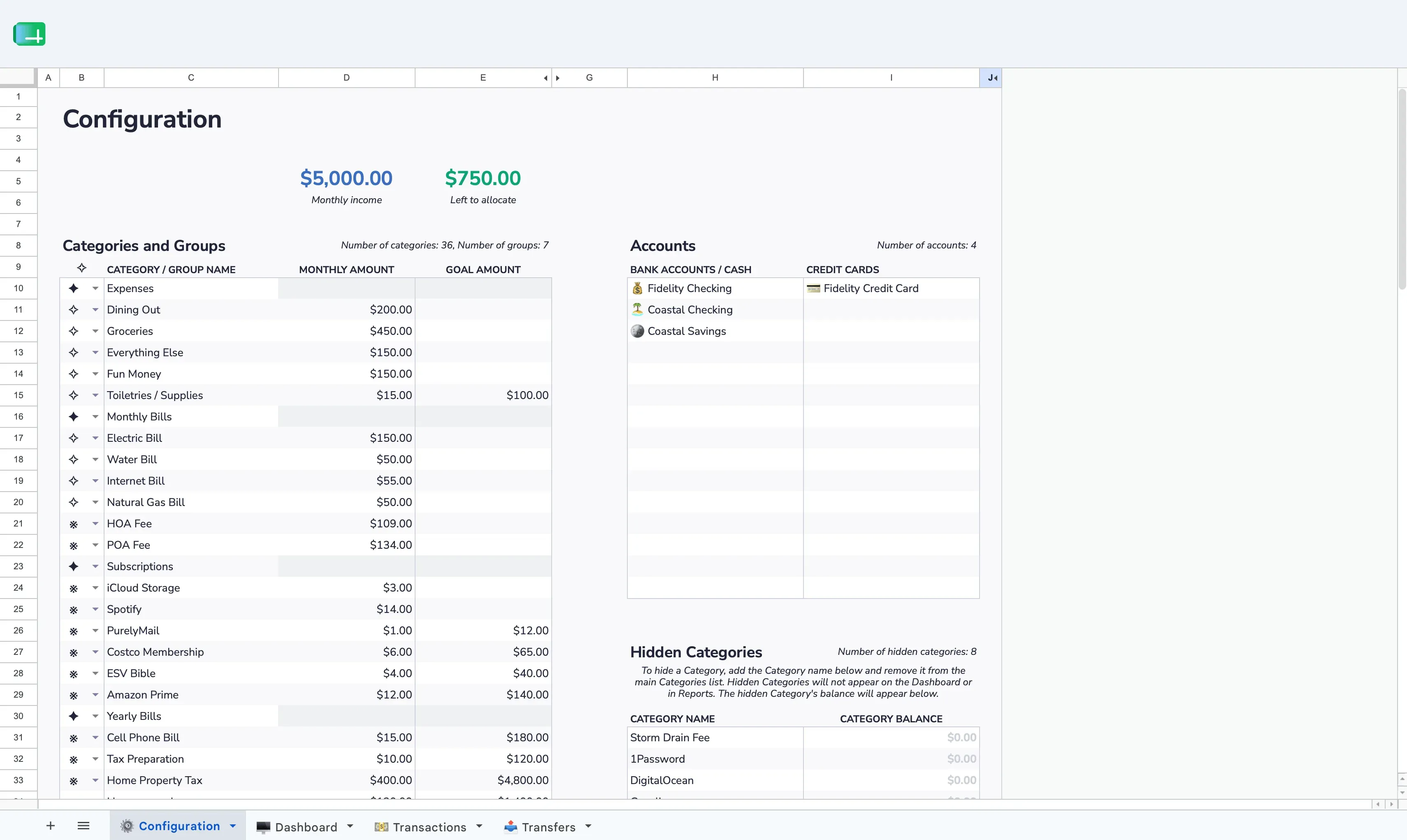
Setting up your budget (step by step)
Regardless of approach, here’s the process:
Step 1: List your income
Write down every source of money that comes in monthly:
- Salary (after tax)
- Side income / freelance
- Interest, dividends
- Any recurring payments you receive
If your income is irregular, use the lowest typical month as your baseline.
Step 2: List your expenses
Start broad. You can refine later.
Fixed expenses (same every month):
- Rent/mortgage
- Car payment
- Insurance
- Subscriptions (streaming, gym, etc.)
Variable expenses (change monthly):
- Groceries
- Dining out
- Gas/transportation
- Entertainment
- Clothing
- Personal care
Periodic expenses (not monthly but predictable):
- Car maintenance
- Medical copays
- Gifts/holidays
- Annual subscriptions
For periodic expenses, divide the annual cost by 12 and budget that amount monthly. This prevents “surprise” large bills.
Step 3: Assign amounts
For each category, decide how much you want to spend. Start with fixed expenses (they’re non-negotiable), then allocate the remainder across variable categories.
If you’re doing zero-based budgeting, keep going until every dollar is assigned somewhere — including savings and debt payments. Income minus all budgeted amounts = zero.
If you’re doing simple tracking, just set rough targets and see how actuals compare.
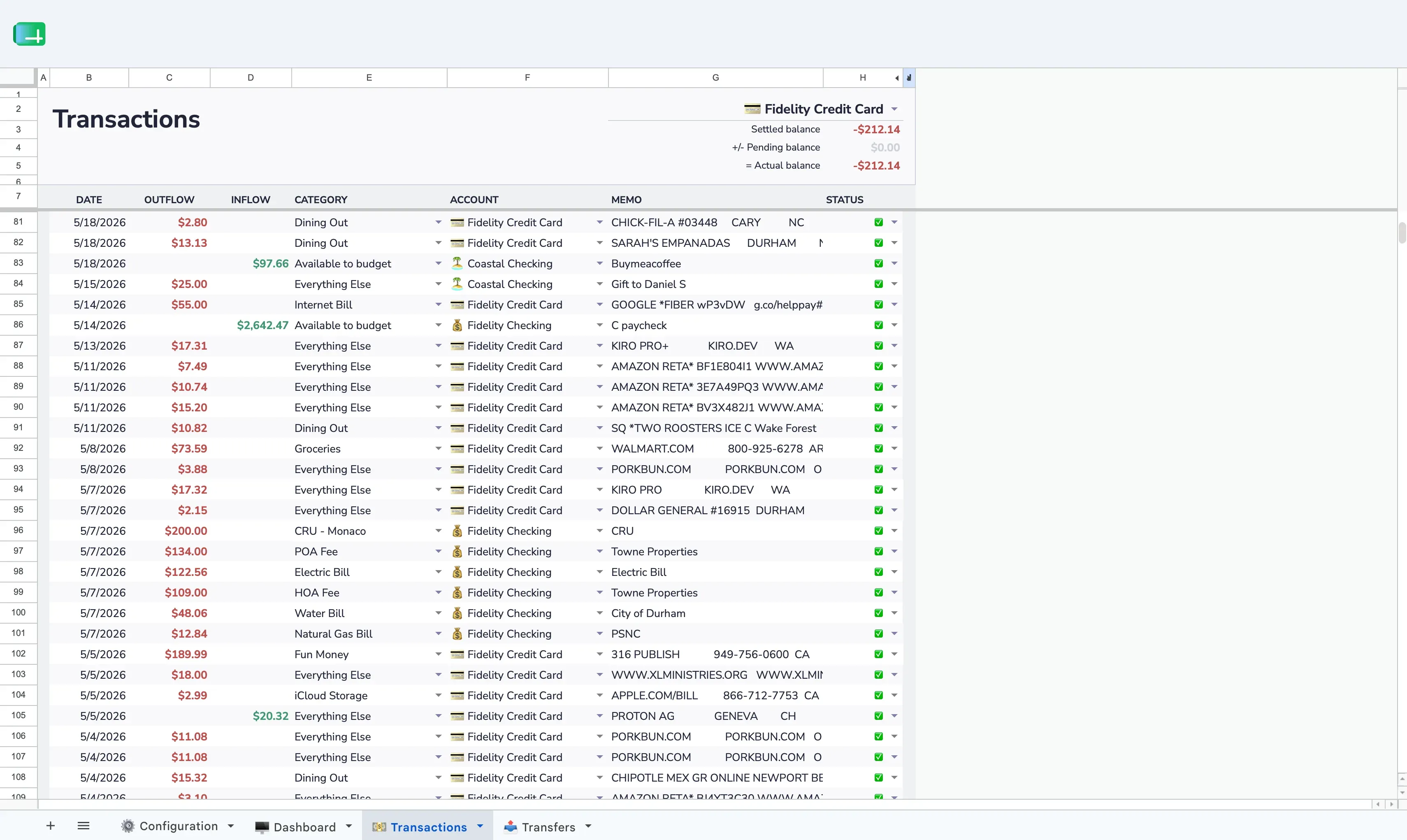
Step 4: Track spending
As you spend money, log it. Options:
- Manual entry — open the sheet on your phone and type it in (10 seconds per transaction)
- Daily batch — sit down each evening and enter the day’s purchases from your bank app
- Weekly CSV import — download a statement from your bank and paste/import transactions
The key: do it consistently. A budget you don’t update is just a wishlist.
Step 5: Review weekly
Spend 5 minutes each week checking:
- Which categories are getting close to their limits?
- Are there any surprises?
- Do you need to adjust anything?
At month-end, compare budgeted vs. actual for each category. Adjust next month’s targets based on what you learned.
Tips for making it stick
Start with fewer categories. 10-15 is plenty. You can always split “Food” into “Groceries” and “Dining out” later. Too many categories upfront makes logging tedious.
Budget for fun. If you don’t allocate money for things you enjoy, the budget will feel restrictive and you’ll abandon it. “Entertainment: $100” is a feature, not a weakness.
Don’t aim for perfection month one. Your first month’s estimates will be off. That’s data, not failure. Adjust and keep going.
Use your phone. The Google Sheets mobile app makes it easy to log transactions as they happen. Pin the sheet to your home screen.
Automate what you can. If you use Aspire Budgeting with Turbo, you can import your bank’s CSV, infer blank Payees and Categories from reviewed history, and focus your attention on confidence-marked suggestions.
When to graduate from basic to advanced
You’ll know you’ve outgrown a basic spreadsheet when:
- You want to see trends over multiple months
- You need to track more than one bank account
- You want to move money between categories without breaking things
- You want automated reports (spending by category, income vs. expenses)
At that point, a purpose-built template like Aspire Budgeting fills the gap without needing to switch to a paid app. It handles multi-month history, multiple accounts, category transfers, and built-in reports — all free, all inside Google Sheets.
Getting started today
- Decide: build from scratch or use a template?
- If template: copy the free Aspire spreadsheet or open Google’s built-in template
- Add your income sources and expense categories
- Set amounts for the current month
- Start logging transactions
You’ll have more clarity about your finances after one week of tracking than most people get in a year of “I should probably budget.”
Frequently asked questions
What is the best free budget template for Google Sheets?
Aspire is a strong free option for envelope-style zero-based budgeting in Google Sheets. It includes a dashboard with category balances, transaction tracking, category transfers, five interactive reports, and multi-account support.
How often should I update my budget spreadsheet?
Log transactions daily (10 seconds each from your phone) and review category totals weekly. Monthly, compare budgeted vs. actual for each category and adjust next month’s targets. The more consistently you log, the more useful the data becomes.
Can I share a Google Sheets budget with my partner?
Yes. Use Google Sheets’ built-in sharing — click Share and add your partner’s email. Both of you can view and edit the same budget simultaneously from any device. No extra accounts or subscriptions needed.
What’s the difference between zero-based budgeting and regular budgeting?
Regular budgeting sets rough spending limits and tracks actuals against them. Zero-based budgeting goes further — every dollar of income gets assigned to a specific category until the remaining amount equals zero. This means savings and debt payments are deliberate allocations, not whatever’s left over.
Do I need to enter every transaction manually?
Not necessarily. You can enter manually (most awareness of spending), batch-enter from your bank app each evening, or import your bank’s CSV file weekly. With Aspire Turbo ($5/month), import the CSV, run Auto-Categorize separately, and review its Payee and Category suggestions in your spreadsheet.
Related reading
- Google Sheets Budgeting Guide — Choose a method, organize categories, plan sinking funds, and run a monthly review workflow.
- Budget Categories — Complete List — Every category with percentage-of-income benchmarks and Google Sheets formulas.
- Real Budget Examples — Actual budget breakdowns for a family, single person, and freelancer.
- Free Google Sheets Budget Template — Copy the Aspire template in one click.
- How to Zero-Based Budget with Google Sheets — Take this further with zero-based methodology.
- How to Track Expenses in Google Sheets — A focused guide on the expense-tracking side.
- Best Google Sheets Budget Templates & Tools — Compare Google, Aspire, Tiller, and DIY options.
- Aspire Turbo — CSV Import & Auto-Categorization — Skip manual entry and import a full month of transactions in 2 minutes.